What Are Gmail Ads?
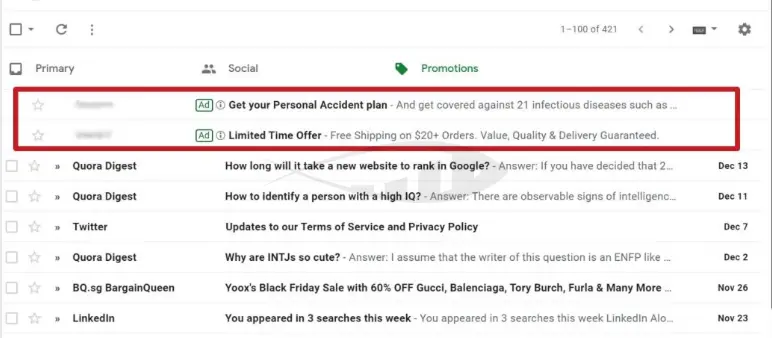
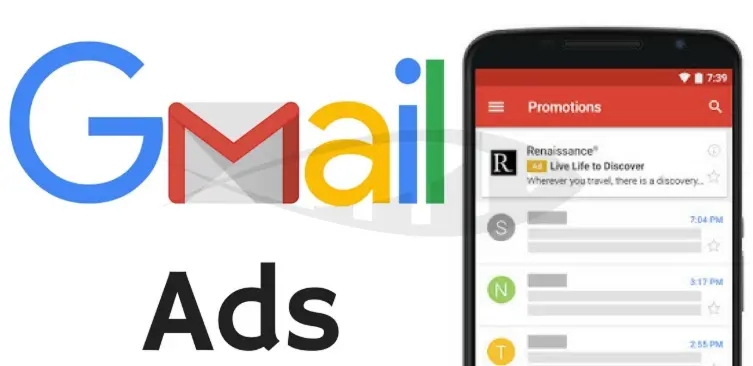
Gmail Ads are a unique ad format that allows brands to show up directly in users’ inboxes. Ads appear in the Promotions or Social tabs in Gmail and resemble regular emails from your company. This makes them feel natural and non-intrusive—unlike traditional banner ads that often trigger ad fatigue.
Next to your company name, users see the label “Sponsored”, along with one of your headlines and description variations. This format is also known as a teaser ad, as it creates intrigue and encourages users to click to learn more.
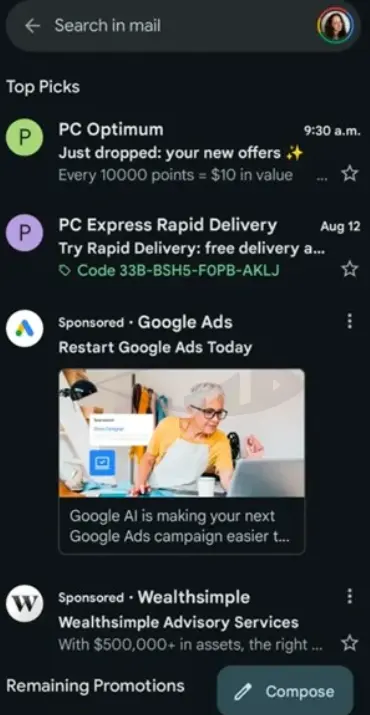
One of the most significant advantages of Gmail Ads is the ability to go beyond text by adding visual elements, such as images, videos, or even product listings from your catalog. This helps your brand stand out in a crowded inbox and significantly increases the chances of engagement. In practice, it works like sending a personalized marketing email—without needing your own mailing list.
For example, in Gmail’s Promotions tab, some brands use bold, banner-style ads with product images (like Google Ads), while others opt for minimalist text-only creatives (like Wealthsimple). Both approaches can work—the choice depends on your campaign goals and brand identity.
Types of Gmail Ads
Since Gmail Ads are integrated into Demand Gen campaigns, marketers get several ad formats to match different goals and audiences:
1. Single-Image and Video Ads
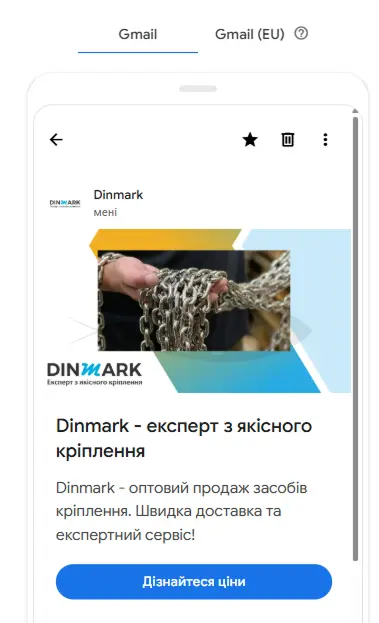
This is the most versatile format, suitable for both e-commerce and B2B.
- You can add up to 5 headline variations and five description variations to each ad, allowing Google to automatically test combinations and serve the most effective ones.
- Image ads support up to 20 visuals, while video ads can include up to 5 clips.
- Important note: The official Google Ads documentation still states that videos are incompatible with Gmail, but that information is outdated. In reality, video ads do appear in the Promotions tab, although they are currently only available on mobile devices.
This format works exceptionally well if you want to stand out in a sea of text-based messages and drive higher engagement through the use of visuals or video content.
2. Carousel Ads
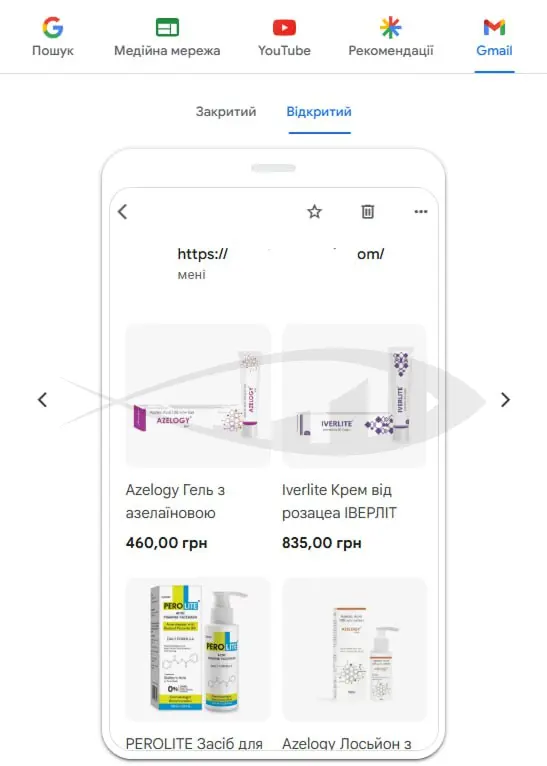
Carousel ads in Gmail function much like those in Meta. You create a series of cards that users can swipe through directly inside their inbox.
- The ad features a single headline and description, displayed to all users.
- After clicking, the ad expands into an email containing the full carousel.
- Each card can feature its own image, headline, description, and final URL.
This format is particularly effective for e-commerce, as it allows you to showcase multiple products or offers in a single ad and direct users straight to the relevant landing page. A key detail: carousel ads are only supported in Gmail Ads—no other Google Ads format currently offers this feature.
3. Product Ads
If you have a product feed connected from Google Merchant Center, you can integrate it directly into Gmail Ads. This enables you to display products with all attributes—image, price, name, and link.
For e-commerce brands, this is one of the most powerful formats, combining the benefits of personalized email-style advertising with the conversion-driving features of Google Shopping.
How to Launch Gmail Ads in Google Ads
Now that you understand the different Gmail Ad formats and the opportunities they unlock, it’s time to move on to the most important step—launching your own campaign. Setting up an ad campaign that runs exclusively in Gmail takes just a few minutes.
In only a few simple steps, your ads can be showing up directly in the inboxes of your potential customers:
How to Create Gmail Ads Step by Step
- Create a new campaign in Google Ads
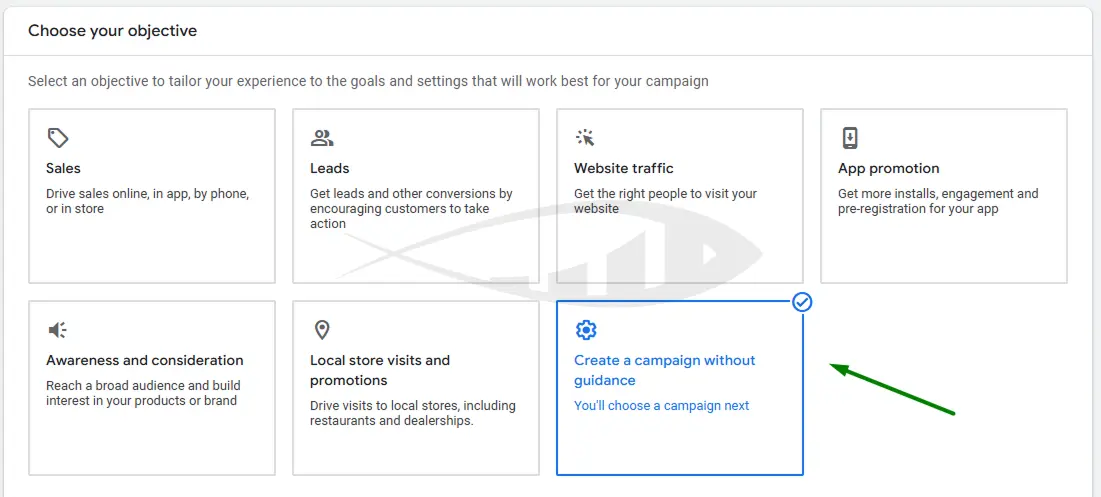
Log in to your Google Ads account and click “New Campaign.” This is your starting point for setting up Gmail Ads tailored to your business objectives. - Choose the goal “Create a campaign without guidance”
This option gives you maximum flexibility—you decide the strategy, format, and targeting. It’s especially valuable for marketers who want to test Gmail Ads as a standalone channel and keep full control over performance. - Select the “Demand Gen” campaign type and confirm your goals
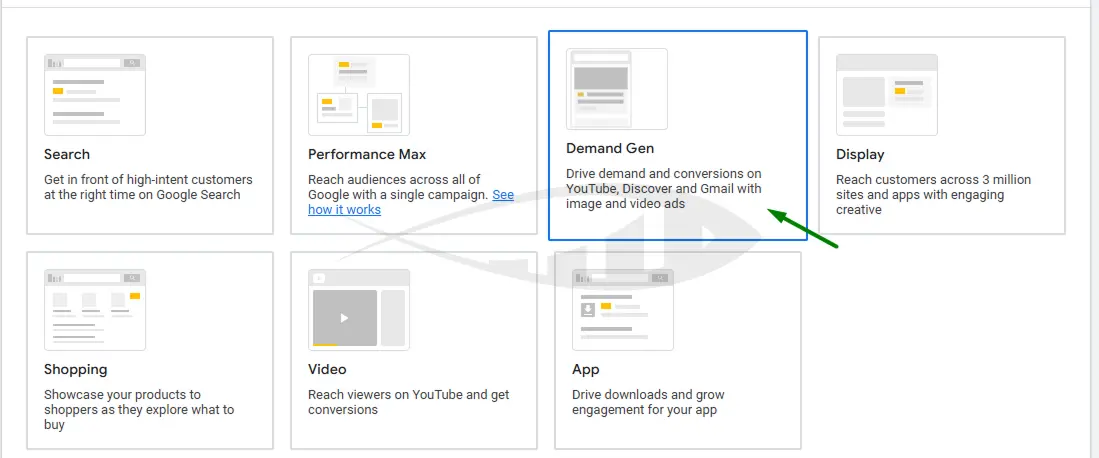
Demand Gen is Google’s new tool for audience engagement. Choosing it gives you access to Gmail as a dedicated placement. At this stage, ensure that you define your key conversion goals (such as leads, purchases, or sign-ups) so that the system can optimize delivery around real business outcomes.
- Set your core parameters: budget, bidding, and audiences
Here you decide how much to invest, how Google will manage your bids (e.g., CPA or ROAS), and which audiences to target. This is the heart of your campaign—the accuracy of these settings directly impacts performance in all following steps. - Configure your placements
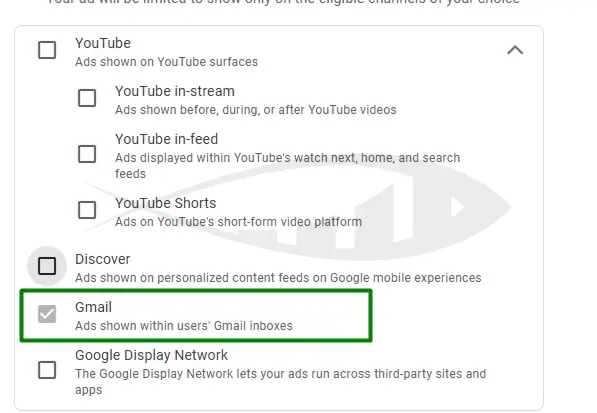
By default, Demand Gen campaigns run across all placements: YouTube, Discover, Display Network, and Gmail. If your goal is a Gmail-only campaign, simply uncheck all other options and leave Gmail selected. This way, your ads will focus exclusively on users’ inboxes—where attention is highest and competition is lower.
How to Measure the Effectiveness of Gmail Ads
Launching a campaign is only the first step. To truly understand whether your Gmail Ads are working, you need to set up analytics correctly.
Add non-standard columns to your reports:
- Interactions
- Engagement Rate
- Average CPE (Cost per Engagement)
Why these metrics matter
- An impression is counted when your ad appears in a user’s inbox.
- An interaction happens when the user opens the ad to view its details.
- Only then can they click a link and be directed to your website.
This means Gmail Ads involve a two-step engagement process: first, the user opens the ad, then clicks on it. To get a complete picture, it’s important to track not just CTR or CPC, but also user interest at the very first stage of the funnel.
Measuring success by campaign goals
- Suppose your goal is engagement. Focus on Engagement Rate and CPE. Low engagement usually indicates that your headlines or descriptions need improvement. Since teaser ads can also display images, try using more eye-catching visuals. The more attractive your ad, the more often Google will serve it—and the lower your CPE will be.
- If your goal is website visits (clicks): Success should be measured by CTR and CPC. A low CTR means people who opened your ad didn’t find it compelling enough to visit your site. Experiment with stronger CTAs, new visuals, or video creatives to improve results. The higher your CTR, the more Google rewards your ads with additional visibility at a lower cost.
- Suppose your goal is conversions. Focus on Conversion Rate and CPA (Cost per Acquisition). Remember, Gmail Ads are best used as a complement to Search or Shopping campaigns. Performance will vary greatly depending on whether you target warm audiences (previous site visitors) or cold audiences (interest segments). If after four weeks you’re not seeing conversions, adjust your bidding strategy to optimize for micro-conversions (such as product views or add-to-cart actions) or test new audience segments.
The golden rule of Gmail Ads
The user journey always starts with engagement. If people don’t open your ad, they can’t click. If they don’t click, they certainly won’t convert. That’s why the first priority is to create ads that encourage interaction, then drive clicks to your site, and finally focus on conversions. This sequence creates a natural funnel where each stage builds upon the next, delivering consistent and scalable results.
Gmail Ads — A New Channel for Growth
Gmail is no longer just email—it’s a space where users interact with brands every single day. With the enhanced capabilities of Gmail Ads within Demand Gen, you gain direct access to your customers’ attention in a place where competition is still lower and performance is higher.
Don’t wait until this tool becomes mainstream. Launch Gmail Ads today, test different formats, track performance, and scale what works. The brands that claim the inbox first are the ones that win the battle for customer trust and conversions.